WINDOWS DOWNLOAD · INTEL / AMD X64
Mask for Windows.
Your Windows download and setup instructions, in one place.
← Choose another platformYour Windows installer is ready.
Version 0.1.5 · Windows 10 / 11 x64 · 49.8 MiB setup EXE.
Download for WindowsThe release build, 14 unit tests and responsive-window launch check passed on a Windows build machine. Real iPhone installation and refresh remain unverified. This preview is not Authenticode-signed.
Published SHA-256 checksums. Only the installer is downloaded—not the private build-source archive.
FIRST-TIME INSTALLATION
Unsigned Windows previewOpening Mask on Windows.
A quick guide to the first launch. This preview is not Authenticode-signed, so SmartScreen may show “Unknown publisher.”
- 01
Open the setup file
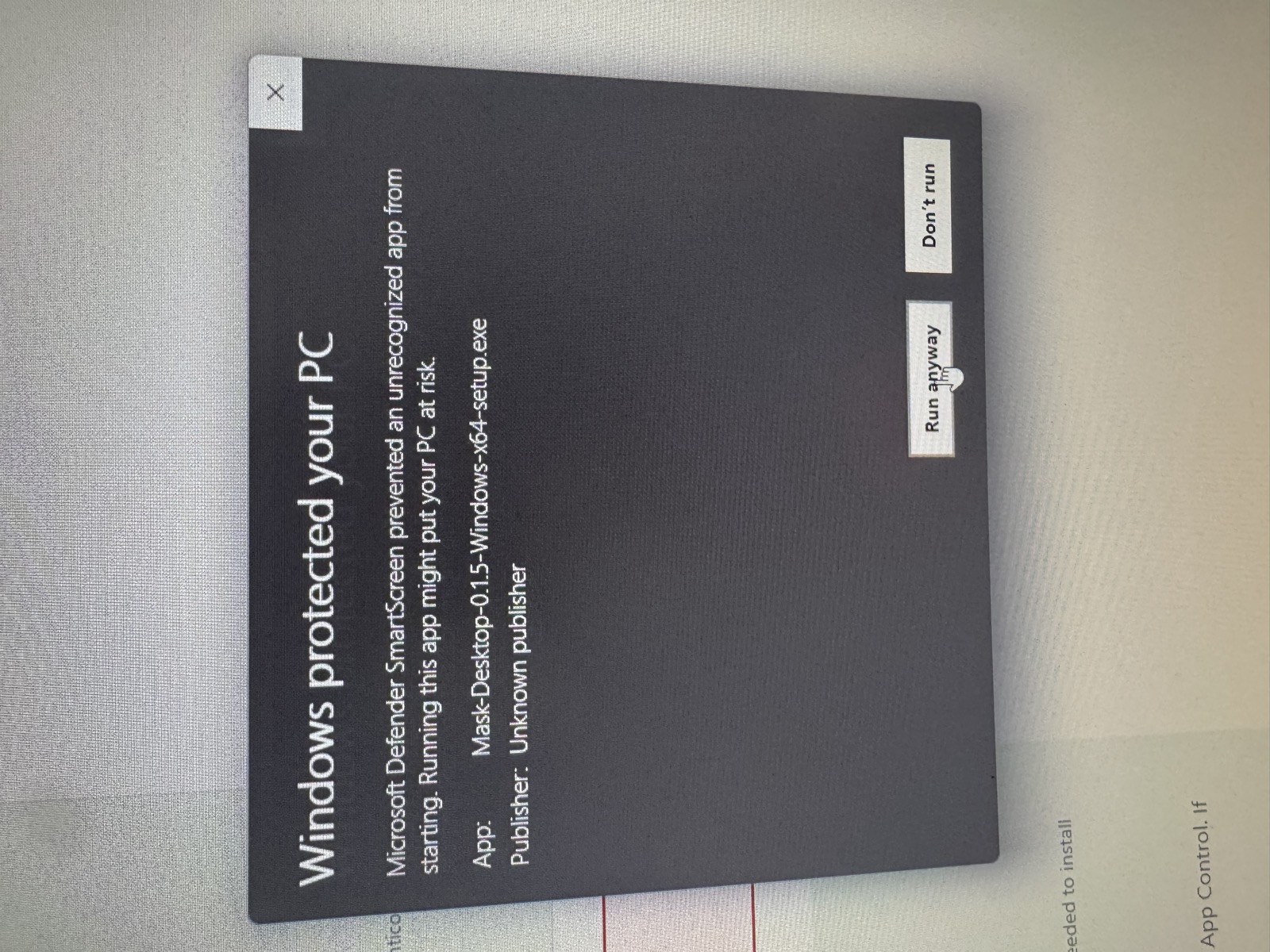
Download the Windows EXE and open it from Downloads. The file name is Mask-Desktop-0.1.5-Windows-x64-setup.exe.
- 02
Review the first-launch notice
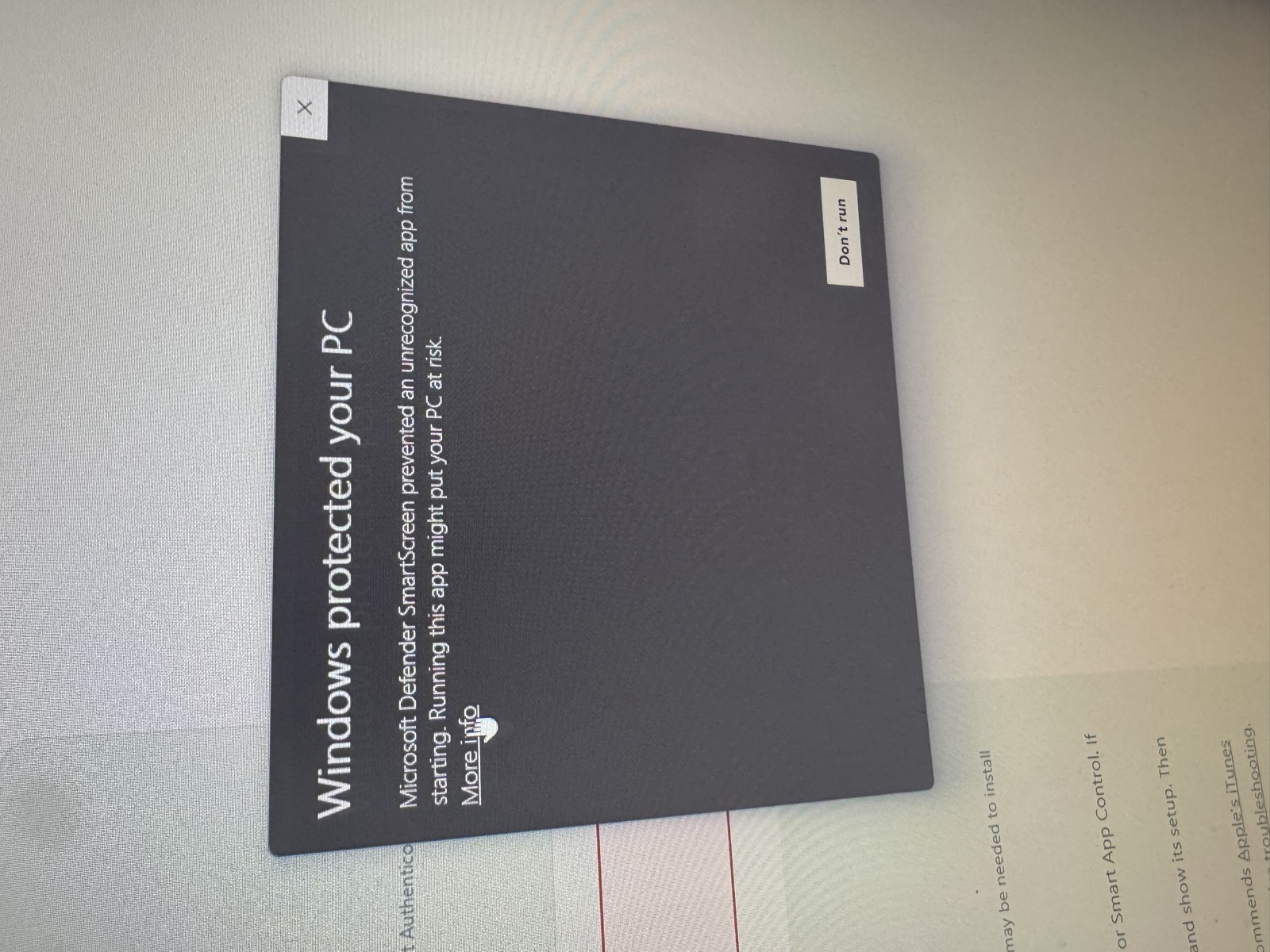
If you see “Windows protected your PC,” choose More info to see the app's file name and publisher.
- 03
Approve this app, if you trust it
Choose Run anyway only if you trust this build, then follow the installer. This is a choice for that one file.
Windows protected your PC
Microsoft Defender SmartScreen prevented an unrecognized app from starting. Running this app might put your PC at risk.
Publisher: Unknown publisher
Watch the first-launch steps. Illustration only; nothing is opened.
If Run anyway is unavailable, Smart App Control blocks it or antivirus reports a threat, stop and report the message. Keep Windows protection enabled.
Microsoft's SmartScreen guide ↗Connection details & original screenshots
SmartScreen checks publisher and file reputation. Installation uses your computer and iPhone over USB; Apple signing, the signing helper and access verification require internet.
Windows USB drivers & compatibility
WINDOWS SETUP · INTEL / AMD X64
A Windows installer.
Not a source-code folder.
The Windows download is a setup .exe. End users do not need Xcode, Rust, Node.js or Visual Studio. Internet is required for Apple services and may be needed to install Microsoft's WebView2 runtime.
- Download the Windows setup EXE from this page. Check its origin and the published checksum before opening it.
- If you see “Windows protected your PC,” follow the illustrated SmartScreen guide above. More info → Run anyway is an optional, one-file decision only after checking the download and deciding to trust it. A checksum is not a safety certification.
- Follow the setup wizard for your Windows user. If WebView2 is missing, the installer can download Microsoft's runtime and show its setup. Then open Start → Mask → Mask Desktop.
- Make sure Apple's device software recognizes your unlocked iPhone over a USB data cable. The upstream installer recommends Apple's iTunes package for Windows USB support. Do not install drivers from an unofficial site. If needed, follow Apple's Mobile Device Service troubleshooting.
- Approve Trust This Computer on your own phone, then follow Mask Desktop's connect, sign-in and install steps. Enter Apple credentials only in the desktop app. Its iPhone setup guide explains Developer Mode, developer trust, direct pairing transfer and LocalDevVPN approval.
This first Windows package targets Windows 10/11 x64 (Intel/AMD), not 32-bit Windows or a Windows ARM64 build. USB, Apple Account signing, pairing, phone installation and refresh still need a consenting owner's real-device test. Your access code is separate from Apple's signing expiry.
NEW · DESKTOP 0.1.5
A guide beside
your iPhone.
After installation, Mask Desktop opens a five-step guide covering Developer Mode, trusting your own developer profile, pairing, LocalDevVPN and on-phone readiness. You can also open it from iPhone setup guide in the desktop app.
With your own unlocked iPhone connected, choose Send pairing directly to this iPhone and approve the transfer. It sends only that phone's record into its Mask app over USB. Reopen Mask and check Setup. Manual private export/import is available as a fallback.
No personal pairing record is bundled in the download. Each phone needs its own. Never upload a pairing file here or to chat. Developer Mode, developer trust and VPN permission still require your approval on the iPhone; the desktop cannot silently enable them. Direct transfer is new and still needs physical-device testing; desktop success does not verify the phone's developer tunnel.
NEW · IPHONE BUILD 17
Before simulating
on cellular.
Mask now shows preparation guidance before starting a teleport or drive on a cellular—or VPN-obscured—connection.
- Choose your destination or load your route while you still have internet.
- Turn Wi-Fi off in Settings and turn Cellular Data off in Control Center. Leave LocalDevVPN enabled.
- Return to Mask and tap Continue. Once Mask confirms simulation has started, you can turn Cellular Data back on if needed.
Mask cannot switch Wi-Fi or cellular off for you, or verify those switches through every VPN. Stop/reset remains available without this preparation prompt. Developer pairing, an appropriate developer image and the connection helper are still required; reliability can vary by iOS and network.