MAC DOWNLOAD · DESKTOP 0.1.5
Mask for Mac.
Your Mac download and setup instructions, in one place.
← Choose another platformYour Mac installer is ready.
Version 0.1.5 · Apple silicon · macOS 11 or later · 52.4 MiB DMG.
Download for MacDevelopment preview. Not Developer ID–signed or notarized. Published SHA-256 checksums.
FIRST-TIME INSTALLATION
Unnotarized Mac previewOpening Mask on Mac.
A quick guide to the first launch. This preview is not notarized by Apple, so macOS may ask you to review it.
- 01
Copy it to Applications
Open the downloaded DMG, then drag Mask Desktop onto the Applications folder. Open that copy of the app.
- 02
Review the first-launch notice
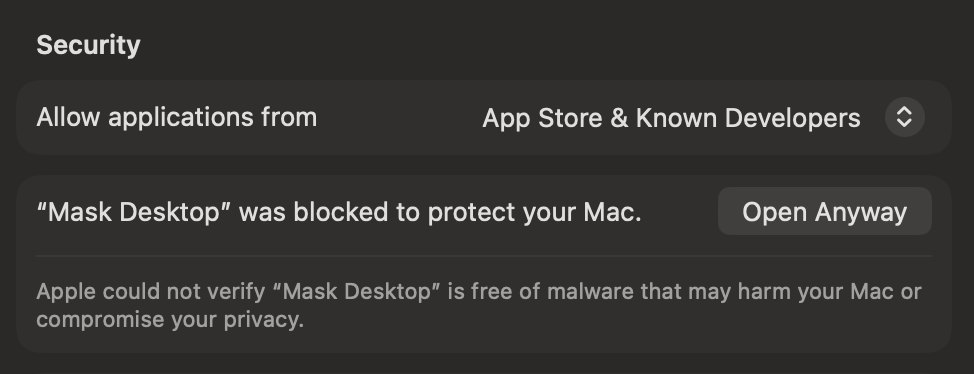
If macOS says it cannot verify Mask Desktop, click Done. Open System Settings → Privacy & Security, then scroll down past the privacy categories.
- 03
Approve this app, if you trust it
Near the bottom, under Security, choose Open Anyway, then confirm Open if asked. Authenticate on your Mac only.
“Mask Desktop” Not Opened
Apple could not verify “Mask Desktop” is free of malware that may harm your Mac or compromise your privacy.
Watch the first-launch steps. Illustration only; nothing is opened.
The app-specific Open Anyway option appears after a blocked launch and may be absent once approved. If it is missing, try opening Mask from Applications again; on a managed Mac, contact your administrator. Keep Gatekeeper and quarantine protections enabled.
Apple's opening guide ↗Connection details & original screenshot
Installation runs locally over USB. Apple signing, the signing helper and Mask access verification require internet. Apple Account details are entered in the desktop app, not this website. Your pairing record is specific to your iPhone and is not bundled in public downloads.
NEW · DESKTOP 0.1.5
A guide beside
your iPhone.
After installation, Mask Desktop opens a five-step guide covering Developer Mode, trusting your own developer profile, pairing, LocalDevVPN and on-phone readiness. You can also open it from iPhone setup guide in the desktop app.
With your own unlocked iPhone connected, choose Send pairing directly to this iPhone and approve the transfer. It sends only that phone's record into its Mask app over USB. Reopen Mask and check Setup. Manual private export/import is available as a fallback.
No personal pairing record is bundled in the download. Each phone needs its own. Never upload a pairing file here or to chat. Developer Mode, developer trust and VPN permission still require your approval on the iPhone; the desktop cannot silently enable them. Direct transfer is new and still needs physical-device testing; desktop success does not verify the phone's developer tunnel.
NEW · IPHONE BUILD 17
Before simulating
on cellular.
Mask now shows preparation guidance before starting a teleport or drive on a cellular—or VPN-obscured—connection.
- Choose your destination or load your route while you still have internet.
- Turn Wi-Fi off in Settings and turn Cellular Data off in Control Center. Leave LocalDevVPN enabled.
- Return to Mask and tap Continue. Once Mask confirms simulation has started, you can turn Cellular Data back on if needed.
Mask cannot switch Wi-Fi or cellular off for you, or verify those switches through every VPN. Stop/reset remains available without this preparation prompt. Developer pairing, an appropriate developer image and the connection helper are still required; reliability can vary by iOS and network.